Why do we need to disable the WordPress auto image resize feature? Some people might not realize that by default, when we upload an image to WordPress, it automatically creates copies of that image in several sizes, which will certainly fill up our web hosting disk space quickly.
Don't believe it? Here is an example of when I created a website with WordPress and only uploaded one image, but in the upload folder, there were several images that had beenresized.

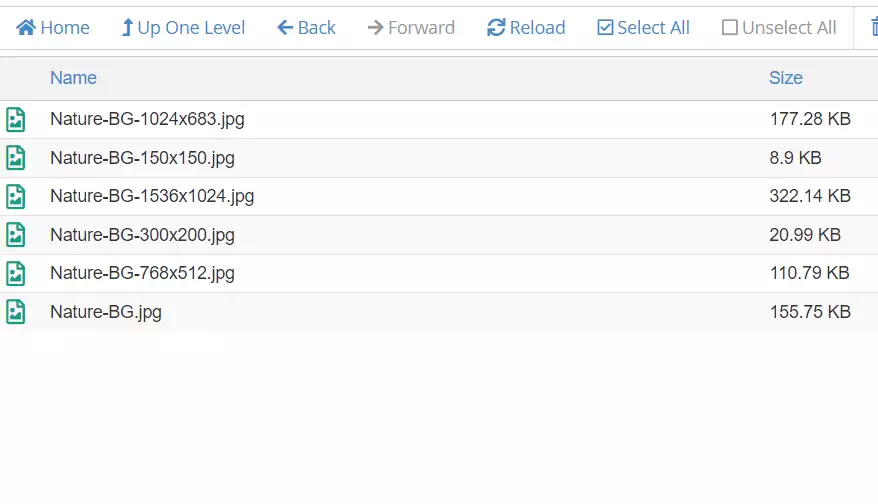
Wow, that is quite a lot, from one uploaded image that was magically turned into 6 files!
So, is there a way to disable WordPress auto image resize?
Fortunately, we can disable this auto resize feature without having to add any code at all. Well, although if you prefer using code, there is certainly still an option for this.
Before doing this, make sure to back up your website, either using a plugin or manually.
How to Disable WordPress Auto Image Resize
Before disabling the WordPress auto image resize feature, it is a good idea to learn why WordPress creates these copies.
So, these copies automatically created by WordPress are used to improve our website performance by placing images according to the location used.
For example, for a thumbnaildisplay, WordPress will automatically choose the image copy that has beenresized to 150×150, so the website can be accessed more optimally.
Even so, it does not mean that these resized images will always be used, because usually there are themes that add or use custom sizes, so images resized using the default WordPress sizes become unused.
Disabling Default WordPress Auto Resize
For this method, we can only disable the default auto resize feature from WordPress. If a theme adds sizes using other dimensions, then we need to add them using code or another method.
To disable the default WordPress auto resize, we can open the Settings → Media page in the WordPress dashboard, then change all sizes to 0 (zero).

After all values are changed to zero, the images we upload later will not be automaticallyresized anymore, but the images we have already uploaded and resized will not be deleted.
However, because by default WordPress creates copies with thumbnail, medium, medium_large, and largesizes, this method still leaves one image copy with the medium_largesize, so if you want to disable all auto resize features from either default WordPress or themes, it is recommended to use code or a plugin.
Disabling WordPress Auto Image Resize with Code
If after disabling the default auto resize there are still images being copied with other sizes, then it is likely that the theme being used adds code to create copies with different sizes.
To check for additional sizes created by the theme, we can open Theme File Editor → Theme Function, then open the search option in the code column with the CTRL + F keys and search for the keyword add_image_size.

If there is an auto resize option from the theme, then we can find results more or less like this
//Kode defaultadd_image_size( 'nama_resize_gambar', width, height, true [parameter opsional, biasanya tidak ada] );
//Contoh kode asliadd_image_size('gambar_custom', 2000, 660, true);If you find code like that, you can delete or add comments to that line of code to disable the custom auto resize feature.
However, if it turns out there are many, or the resize file is not found in the functions.php file, then we can use code that will automatically disable all auto resize features in WordPress by adding the following line of code at the very end of the functions.php
add_filter( 'intermediate_image_sizes_advanced', 'wpgan_remove_auto_resize_image' );
function wpgan_remove_auto_resize_image( $sizes ){ $sizes = array(); return $sizes;}file. By using the code above, all image resize features will be turned off, both resize from the theme and default WordPress resize.
Disabling WordPress Auto Resize with a Plugin
This method can be considered the easiest way to disable all auto resize, or to disable resize for certain sizes only.
If using a plugin, we can install and activate the ThumbPress – Stop Generating Unnecessary Thumbnailsplugin, then after the plugin is active, we can open the Media → ThumbPress menu from the admin dashboard page.

Next, on the ThumbPresspage, we can see a list of custom image resizes in WordPress, both those that have been turned off and those that are still active.
To disable auto resize, we just need to drag the size we want to turn off to the right column, so the resize option becomes green.

After selecting the sizes to be removed, we can then click the Save Setting button and try to upload an image, and certainly, auto resize for the selected sizes will no longer be created.

COMMENTS
Loading...