When building a website, especially using WordPress, we naturally want every logo that appears to be our own, including the logo on the login page. Fortunately, if our website uses WordPress, we can replace the WordPress logo that appears on the login page with our own.
We could actually change the logo using a plugin, such as Change Login Page Logo, but here we will change the logo using only code.
Why use code? Because if you use code, you only need to add about 14 lines of code to change the WordPress logo on the login page, which is more effective than having to use a plugin.
How to Change the WordPress Logo on the Login Page
Since we are going to change the logo, we need to determine the new logo we will use. For example, here I will use the logo below:

Once the logo is prepared, we need to add the code to change the logo, and for this change, we will use the plugin WPCode – Insert Headers and Footers + Custom Code Snippets – WordPress Code Manager, so to make it easier, you can also install that plugin.
1. Copy the Logo Edit Code
To change the WordPress logo on the login page, we can use the following lines of code
add_filter( 'login_head', function () { // Ganti link dengan link logo yang ingin kalian gunakan. $custom_logo = 'https://ik.imagekit.io/vbsmdqxuemd/wpgan/logoipsum-297.svg'; // Sesuaikan lebar dan tinggi logo dengan pengaturan dibawah ini $logo_width = 202; $logo_height = 40;
printf( '<style>.login h1 a {background-image:url(%1$s) !important; margin:0 auto; width: %2$spx; height: %3$spx; background-size: 100%%;}</style>', $custom_logo, $logo_width, $logo_height );}, 990 );After copying, make sure to change the logo link and the size of the logo you want to display, then we can proceed to the next step.
2. Add the Code to WordPress
To add the code to WordPress, we are using the WP Code plugin here. However, if you want to add the code directly without a plugin, you can add it to the functions.php file in your active theme.
If using WP Code, we can open the menu Code Snippets > Add Snippet, then select the option Add your custom code to add the code that has been copied.
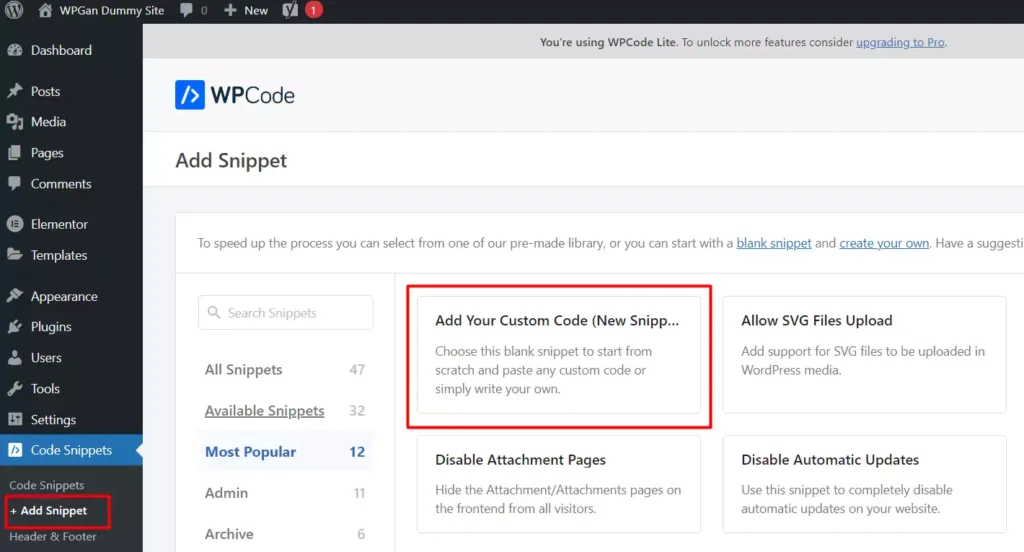
Enter the snippet name then change the Code Type to PHP before adding the copied code.

Have you added the code snippet and changed the code type to PHP? Then we just need to activate the code snippet and save the changes.
3. Check the Login Page
After saving and activating the snippet, we can try accessing the login page using a private tab (Private Tab Shortcut for Every PC Browser) and if successful, the display will look something like this
How was it? Easy, right?
If the logo size is still too small later, we can adjust it through the width for the logo width and height for the logo height, both of which can be changed through the code we copied.

COMMENTS
Loading...