Although simple, the right button can improve visual appeal, user experience, and even conversions on our website. It is not uncommon for websites to have at least one button on their homepage. In this article, we will discuss an easy way to create a button in WordPress using the Block Editor or Gutenberg.
There are no special plugins or themes that we need to install when we want to create a button, because we can directly use the WordPress Block Editor to create an attractive button.
It cannot be denied that to improve the visuals of a button we might need to add special code, but here we will discuss the easy or simple way.
How to Create a Button in WordPress
By default, WordPress uses the block editor to edit or add articles, so here we will discuss how to create a button in WordPress using the Block Editor, also known as Gutenberg Editor.
1. Edit or Add an Article
For example, here we will create a button that, when clicked, will lead to WhatsApp. We can start by logging into the WordPress dashboard, then edit or add an article.
If you still cannot find the page to add an article, we can open the menu Posts → Add New, or open the page Pages → Add New to add a new page.
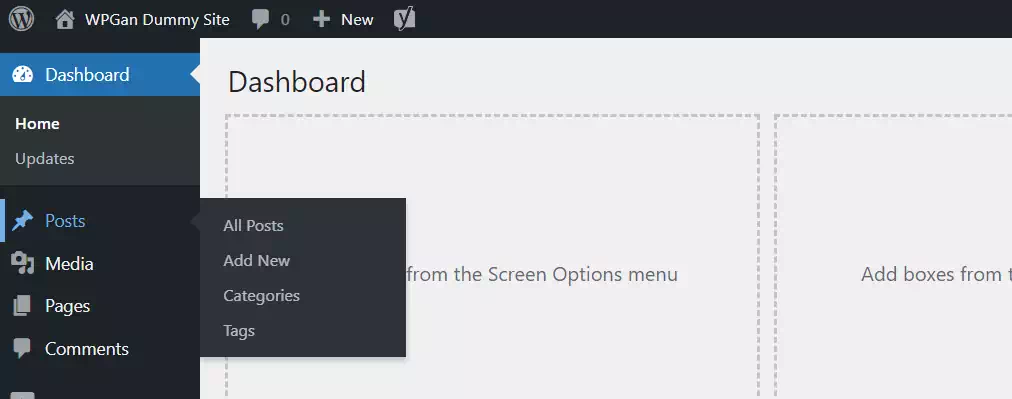
However, if you want to edit an article, we can open the page Posts → All Posts, then click the title of the article we want to edit, and we will be automatically redirected to the article edit page.

2. Add a Button Block
Once on the article editor page, we can add a button by clicking the plus button (+) with a blue background in the top left corner, then search for the block Button, or you can also directly click the plus button (+) inside the block editor to search for Button

Once found, just click the menu or block Buttons and the button will be automatically added to our block editor so we can start by adding the text on that button, for example adding the text My WhatsApp.

3. Add a Link
We have successfully added a button, but the button cannot be clicked yet. We need to change the button content by clicking the Button block we added. Then, several menus or options will appear that we can use. To add a link, we simply click the link icon and then add the link to be used, for example adding a link to https://whatsapp.com and press the Enter key to save the link

4. Customize the Button
Does the button look unappealing? We can click the button we created, then in the panel on the right side of the screen, we can select the menu or icon Style to add our button style, for example changing the button background to green.

Besides changing the color, we can certainly also change other styles such as button size, padding, border radius, and so on.

5. Preview and Publish
Usually, even though we have performed customization, there are themes that will override those customizations with the theme's default style. Therefore, it is recommended to check the customization results by previewing the page where we added the button by clicking the button New Tab located to the left of the Publish or Update.

If everything is correct and no further adjustments are needed, and the article is complete, we can publish or update the article and the results can be seen by other website visitors.

Don't forget to try clicking the button we created earlier and make sure the button is actually working!

COMMENTS
Loading...