If we previously discussed How to Add WordPress Header Code Without a Plugin, then this time we will discuss how to add WordPress footer code without a plugin.
If you want to add code to the header, you can follow the tutorial on this page: The Latest Way to Add WordPress Header Code Without a Plugin
When you are already using too many WordPress plugins, you might need to reduce plugin usage so your website does not load too slowly.
The good news is that you can add header code in WordPress without using any additional plugins at all, and the method is quite easy.
What You Need Before Adding WordPress Footer Code Without a Plugin
- A CMS WordPress-based website
- Access to the WordPress dashboard, or access to the file manager via hosting/FTP/SFTP
- Using a child theme (as an alternative, so that if you update your theme, your added code will not disappear)
- The code to be added to the Footer
How to Add WordPress Footer Code Without a Plugin
1. Via the WordPress Dashboard
- Log in to your WordPress dashboard, which can usually be accessed directly via https://namaweb.site/wp-admin
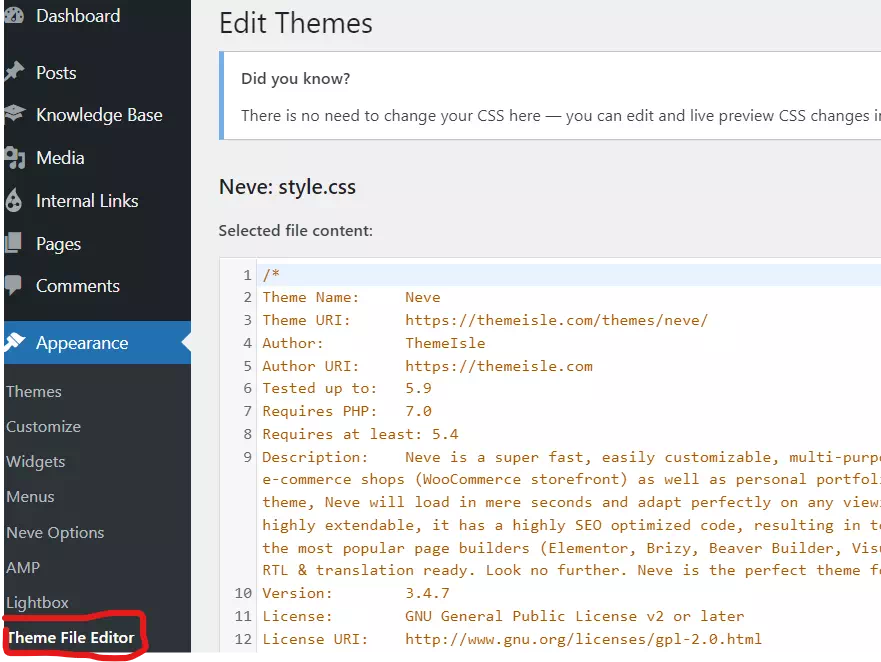
- On the WordPress dashboard page, open the menu Appearance
- Select the sub-menu Theme File Editor
- When the file edit notification appears, select the option I Understand to continue the process of changing your theme script
- Next, open the file functions.php that is in your WordPress theme
- Paste the following code on the last line of the file functions.php

/* Tulis deskripsi kode supaya mudah dicari ketika pengeditan berikutnya */add_action('wp_footer', 'nama_fungsi'); function nama_fungsi(){ ?> TEMPEL KODE KALIAN DISINI <?php};- After the code is added, save the changes and Clear Cache on your WordPress site if you are using a cache plugin.
2. Via File Manager
- Log in to your web hosting (cPanel, Plesk, Webuzo, etc.), then open the file manager
- Open your WordPress installation folder (cPanel is in the folder public_html)
- Inside the WordPress installation folder, open the folder wp-content/themes
- Select your theme folder, here we are using the theme NEVE
- Find the file functions.php, then right-click and edit
- Add the following code on the last line of the file functions.php, then save
/* Tulis deskripsi kode supaya mudah dicari ketika pengeditan berikutnya*/add_action('wp_footer', 'nama_fungsi'); function nama_fungsi(){ ?> TEMPEL KODE KALIAN DISINI<?php};- After saving, clear the cache on your WordPress site if you are using a cache plugin.
Adding WordPress Footer Code Without a Plugin to Specific Pages
If you want to add footer code only on certain pages, for example only on the homepage, then you need to change the code added to the filefunctions.php.
Adding Header Code Only on the Homepage
/* Tulis deskripsi kode supaya mudah dicari ketika pengeditan berikutnya*/add_action('wp_footer', 'nama_fungsi'); function nama_fungsi(){ if(is_front_page()) { ?> TEMPEL KODE KALIAN DISINI<?php }};Adding Header Code on Specific Pages or Posts
If you want to add footer code to specific articles, for example with article IDs 67243 and 72433, then you can use the following code
/* Tulis deskripsi kode supaya mudah dicari ketika pengeditan berikutnya*/add_action('wp_footer', 'nama_fungsi'); function nama_fungsi(){ if(is_single(67243,72433)) { ?> TEMPEL KODE KALIAN DISINI<?php};*Change 67243,72433 to your Post or Page ID.

COMMENTS
Loading...